Theme Sharing
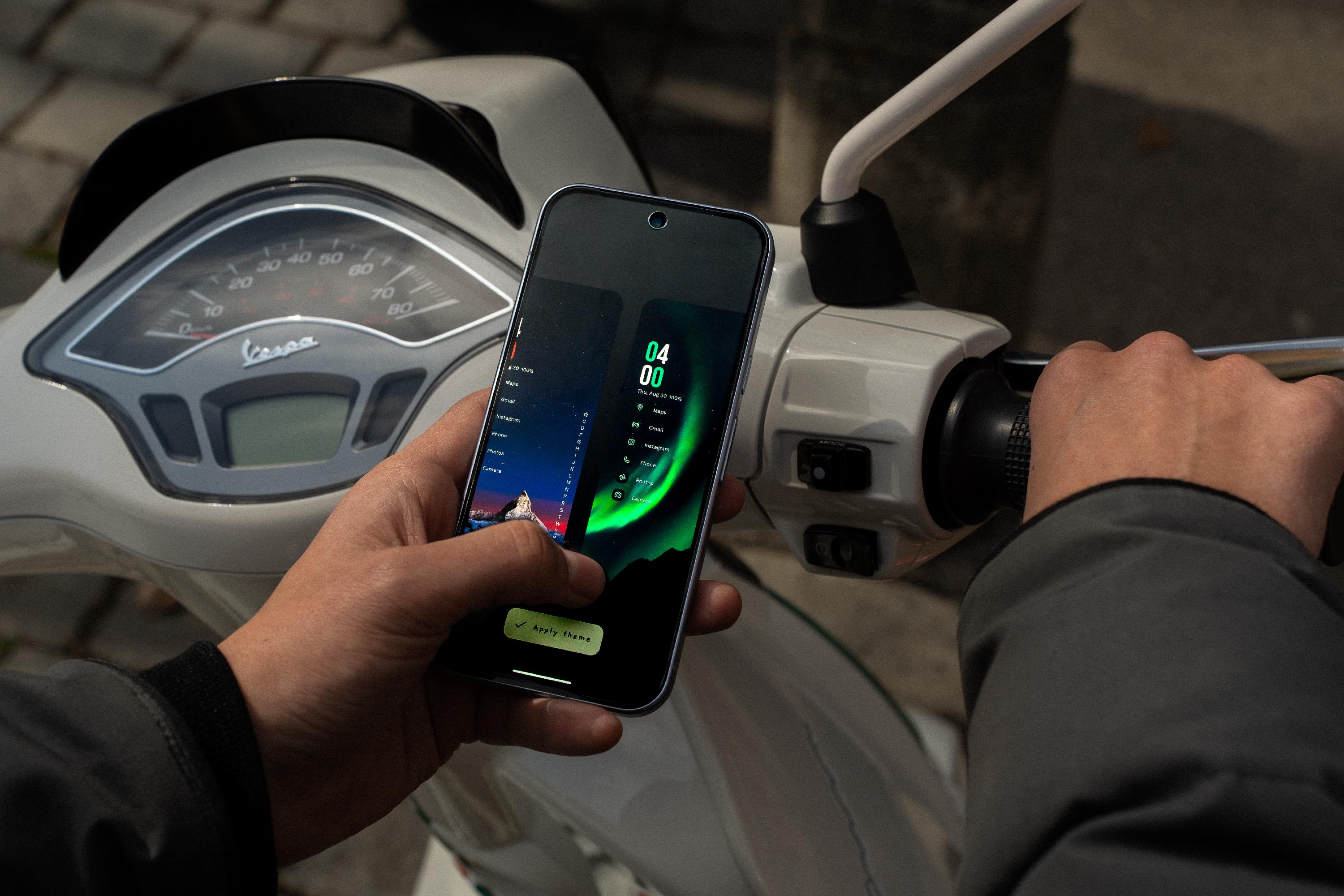
With the Studio Update, we introduced the ability to create themes by yourself to allow you to quickly switch between different styles for your home screen.
The best part? You don't need to keep these themes to yourself! Thanks to the Theme Sharing feature, you can share your themes with others by exporting them as .nlt files.
Sharing a Theme
To share the theme that is currently applied on your home screen, go to Niagara Settings > Themes > Community Themes > Share Current Theme. Then, choose which app you want to use to share your theme.
In addition to that, the theme's .nlt file will be saved in your Downloads folder.
Share With A Friend
If you want to share the theme with friends, simply share it with them directly.
Share Publicly
If you want to share your theme publicly, consider adding it to our Community Themes where other users go to look for new and inspiring themes.

We use the official Niagara Launcher Discord as a main hub for all community themes. Join the server, then create a new post in #community-themes with a screenshot of your theme and the .nlt file.
Importing a Theme
Note that applying imported themes requires Niagara Pro
If you have received a theme as an .nlt file, here's how you can import it:
- In Niagara Settings, go to Themes > Community Themes > Import Community Theme.
- You then need to locate the downloaded file via your system's file picker.
- Afterwards, the theme will be imported, and the My Themes overview opens.
- To then apply the theme, simply click the Apply Theme button.
What Themes Can I Share?
Please note that there are some limitations to which themes can be shared.
- Custom Fonts and Wallpapers are bundled with the theme, but there's an overall size limit for the theme.
- Themes that use wallpapers that were applied outside of Niagara Launcher cannot be shared, since Niagara Launcher cannot access the wallpaper in this case.
- Themes that use the system font cannot be shared, as the system font varies per device, so the theme could look different on another device.
- Themes that use Icon Pack Studio currently cannot be exported, since Niagara Launcher cannot restore the icon pack upon import.
Backups
To stay below automatic Google backups' maximum file size, restored themes do not contain wallpapers. We recommend either creating a Niagara Launcher Backup, or exporting important themes as .nlt files and backing up those.